

Azure Container Registry
Connect your Azure Container Registry without storing a single secret.
AlertaVuln uses OpenID Connect workload identity federation: your Azure
tenant trusts AlertaVuln’s identity provider for exactly one connection,
and the access is pull-only (AcrPull). There is no password, token or
certificate to rotate, leak or expire.
A registry-wide connection covers every repository on the registry host: container repositories on your projects resolve it automatically, and tag monitoring works without any per-repository setup.
What you will create
Section titled “What you will create”- A registry connection in AlertaVuln (this generates the trust values).
- An app registration in your Entra tenant with one federated credential trusting that connection.
- An AcrPull role assignment for the app on your registry.
Step 1 - create the connection in AlertaVuln
Section titled “Step 1 - create the connection in AlertaVuln”Go to Settings, Registry connections, New connection:
- Name - anything that identifies it, e.g.
Production ACR. - Registry URL - your login server, e.g.
myregistry.azurecr.io. - Authentication - Azure Workload Identity.
- Pull scope - Registry wide (the default) unless you want to limit the connection to a single repository.
Saving opens the trust panel. It shows the two values Azure needs - the
Issuer URL and the Subject identifier - plus a ready-made az script
with them already filled in. Keep this panel open for step 2.
Step 2 - register the app in Entra
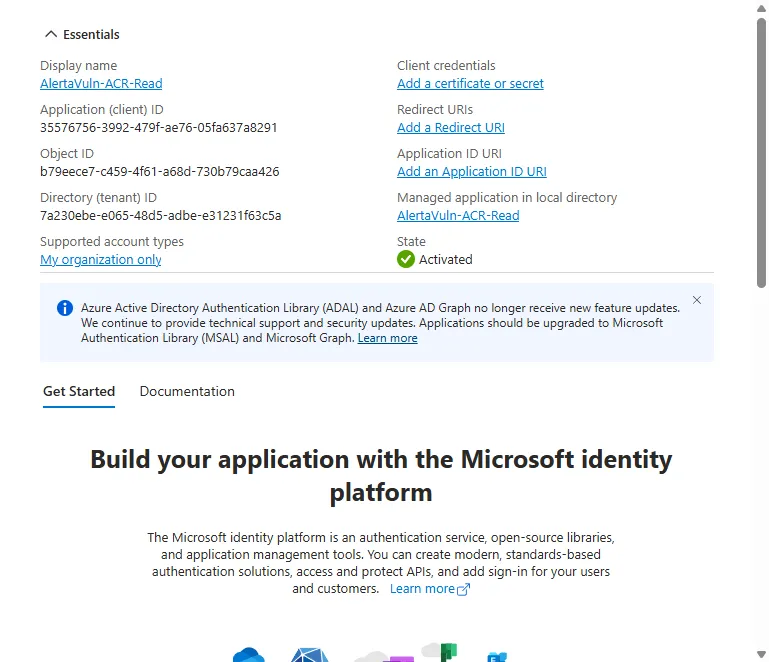
Section titled “Step 2 - register the app in Entra”In the Azure portal, open Microsoft Entra ID, App registrations, New
registration. Give it a recognisable name (for example
AlertaVuln-ACR-Read), keep My organization only, leave the redirect
URI empty and register.
From the app’s Overview, note the Application (client) ID and Directory (tenant) ID - AlertaVuln needs both in step 4.
Now open Certificates & secrets, Federated credentials, Add credential and pick the Other issuer scenario. Fill it with the values from the trust panel:
- Issuer - paste the Issuer URL exactly as shown in AlertaVuln.
- Type - Explicit subject identifier.
- Value - paste the Subject identifier exactly as shown. It encodes your organisation and this specific connection, so the trust is scoped to one connection and nothing else.
- Name - anything, e.g.
alertavuln-registry-pull(it cannot be changed later). - Audience - leave the default
api://AzureADTokenExchange.
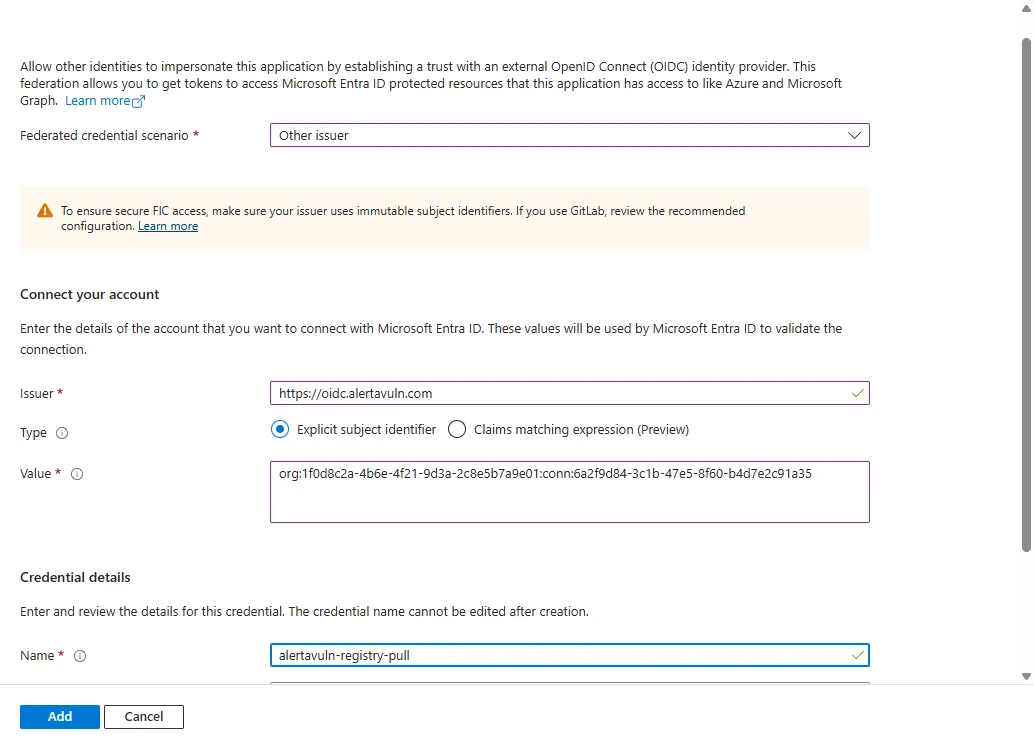
Both values must match character for character - a trailing slash on the issuer or a re-typed subject is the most common reason a connection fails to verify.
Step 3 - grant AcrPull
Section titled “Step 3 - grant AcrPull”Give the app pull-only access to the registry. In the portal: your registry, Access control (IAM), Add role assignment, AcrPull, then select the app you just registered. Or with the CLI:
az role assignment create \ --assignee <application-client-id> \ --role AcrPull \ --scope $(az acr show --name <registry-name> --query id -o tsv)AcrPull is all AlertaVuln ever needs. Do not grant broader roles.
Step 4 - finish and verify in AlertaVuln
Section titled “Step 4 - finish and verify in AlertaVuln”Back in the trust panel, paste the Application (client) ID and Directory (tenant) ID into the connection and save, then press Test connection.
Verification exercises the entire chain live - AlertaVuln mints a federated token, exchanges it with your tenant, and completes the registry’s own token handshake. A green result means scans and tag monitoring will work. A failure tells you which step broke and what to check, so you never have to guess between a typo’d subject and a missing role assignment.
Once verified, any container repository on that registry host resolves the connection automatically - browse tags, enable monitoring per repository, and new tags get scanned as they appear.
Troubleshooting
Section titled “Troubleshooting”| Symptom | Likely cause |
|---|---|
| Verification fails at the Azure token step | Issuer or subject on the federated credential does not exactly match the trust panel, or the client or tenant ID is wrong |
| Verification fails at the registry step | The AcrPull role assignment is missing, still propagating (allow a few minutes), or was granted on the wrong registry |
| Tags list is empty for a repository | The repository path does not exist on the registry, or the connection’s pull scope is limited to a different repository |